Nikon D750 24.3 megapixels DSLR camera has built-in Wi-Fi connectivity that allows you to connect your iPhone wirelessly. You can transfer photos or videos from the camera to the mobile without any physical connection.
If you don’t know how to connect the Nikon D750 to the iPhone, then this guideline is for you.
I have discussed the steps to link the camera to the smartphone here. So let’s dive deeper into the discussion.
Steps To Connect Nikon D750 To The iPhone
Following these steps, you can connect the Nikon D750 shooting device to the iPhone. Steps are-
Step 1: Download The App
At this initial stage, you need to download a mobile app from the apple store. Next, open your mobile app store and search for the ‘Nikon WMU app,’ made and developed by Nikon Authority. This app allows you to connect the camera to the smartphone using the Wi-Fi network.
Step 2: Enable The Camera’s Wi-Fi Network
In this step, enable the camera’s Wi-Fi network. First, turn the camera on and press the ‘Menu’ button to get the sub-menus. Next, navigate the sub-menus and select the ‘Setup’ sub-menu in the ‘Menu’ section.
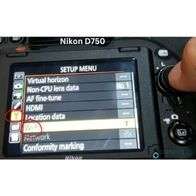
You can find ‘Wi-Fi’ in this section, which is disabled. You must enable it to find the mobile’s Wi-Fi network. Follow the procedures and use the ‘OK’ button to allow it to enable.
Step 3: Connect The Mobile To The Camera
Now, link the camera to the mobile’s Wi-Fi network. Go to the settings of the iPhone to turn on the Wi-Fi network. When you allow the smartphone to search the Wi-Fi network, it automatically finds the camera’s Wi-Fi.
The network will be shown after the camera’s name in the mobile’s Wi-Fi network. Select the name to build up the connection between the camera and the mobile.
Step 4: Use Downloaded App
The shooting device and the gadget are now connected through Wi-Fi. Open the app you have downloaded on the mobile, go to ‘View photos,’ and then ‘Pictures on Nikon D750‘ to see the camera’s images.
Step 5: Transfer Photos
You can also transfer photos from the shooting gadget to the mobile. To do this, select pictures you like, select ‘download’ at the bottom of the display, and then press ‘OK.’ The images will start transferring from the camera to the mobile.
The photo transferred to the mobile will be in its original size if you select one photo. However, they lose their primary size when you choose multiple images to send to the mobile.
Step 6: Turn Off The Camera’s Wi-Fi Network
The last step is turning off the camera’s Wi-Fi network. After sending photos to the mobile, ensure the camera’s Wi-Fi is disabled. The process is the same, from ‘Menu,’ scroll down to the ‘Setup’ menu, select ‘Wi-Fi,’ and then disable.
Conclusion
Nikon D750 DSLR camera gives you Full HD images of 1920×1080 pixels, and you can transfer them in the lowest possible time from the camera to the iPhone using a Wi-Fi network. Follow these steps to connect your device to the web for seamless performance.
check out related articles here –